English
1
User Settings on Color/Mono 0
Users can change the Color/Mono settings on the printer driver as follows
Auto
The machine checks the content of the document for color. If color is detected anywhere in
the document, it will print the whole of the document using all the colors. If no color content
is detected, it will print the document in monochrome.
The default setting on your machine is “Auto”.
Color
Whether the document contains color or just monochrome, your machine will print the
document using all the colors. This means, for example, that the machine will consume color
toner to print documents comprised solely of black text. If either the Cyan, Magenta or
Yellow toner reaches the end of its life while printing a document in Color mode, the print
job cannot be completed. Users can choose to start the print job again in Mono mode, as
long as black toner is available.
Mono
Select this mode if the document has only black and grayscale text and/or objects. If your
document contains color, selecting Mono mode prints the document in 256 levels of gray.
Note
Users who print primarily black text should select Mono mode to prolong the life of their color
toner cartridges.
Toner Cartridge Life 0
Methods of detecting toner cartridge life
This product detects the life of the toner cartridges using the following two methods:
Detection by an optical toner sensor
This product has an optical sensor that detects the remaining toner by checking the level
at which toner in a cartridge interrupts light transmitted through windows on either side of
the cartridge. Toner that sticks to the windows or is unevenly distributed in the cartridge
can interfere with the functioning of this sensor, but such interference can often be
resolved by removing, rocking and replacing the cartridge.
Detection by counting the rotations of the developer roller
This product has a function that will count the rotations of each toner cartridge’s developer
roller and stop the print operation when the upper rotation limit is reached. The upper limit is
set above the number of rotations that would be required for the cartridge to perform
consistently with its advertised page yield. This function is intended to reduce the risk of poor
print quality and damage to the printer. Users who are not printing color documents can “turn
off” this function for their color cartridges by printing in Mono mode (For HL-XXXX, see Printer
Driver in Chapter 2 of the User’s Guide.
For DCP-XXXX/MFC-XXXX, see Basic tab in Chapter 2 of the Software User’s Guide.).
English
2ページ
2
When the toner reaches its life end as determined by either of these two methods, the printer
will notify users by displaying a message on the LCD. There are two messages indicated when
the toner nears or reaches its life end: “Toner Low” and “Replace Toner.”
“Toner Low” is displayed on the LCD when the optical sensor detects a certain amount of toner
has been used or when the number of rotations of the developer roller nears its maximum count,
“Replace Toner” is displayed on the LCD when the optical sensor detects that the
usable toner in the toner cartridge has dropped below the predetermined level, or when
the number of rotations of the developer roller reaches its maximum count.
When either of these occurs, the chemical properties of the toner remaining in the
cartridge have degraded to the point where poor print quality may occur. For that reason,
when “Replace Toner” is displayed on the LCD, print operations are suspended until
the toner cartridge in question is replaced with a new one.
The number of developer roller rotations that are counted may not only be for normal operations such
as printing and copying, but also for machine adjustments, such as Calibration and Registration.
Calibration (Adjustment of Color Density)
To obtain stable print quality, the density of each toner cartridge needs to be maintained
at a fixed value. If the density balance between the colors cannot be kept, the tint becomes
unstable, and accurate color reproduction becomes unavailable. The toner density can
change due to chemical changes to the toner that affect its electrical charge, deterioration
of the developer unit, and temperature and humidity levels in the device.
Print density is maintained by changing the developer bias voltage, which provides the
baseline for electrical charges within the printer. When calibration occurs, the density level
adjustment test patterns are printed on the belt unit, and the density sensor reads them.
The density of each color read by the sensor and the density reference value are
compared. If any difference is found, the developer bias voltage is adjusted to make the
actual print density value match the reference value.
Calibration is mainly performed at the following times:-
- When a print command is received after a specified time has passed (the default is 72
hours).
- When the user manually selects calibration from the operation panel.
- When a used toner cartridge is replaced with a new one.
- When the printer senses that the ambient temperature has changed.
Registration (Combination of Color Images)
In this device, the drum and developer unit are prepared for black (K), yellow (Y), magenta
(M), and cyan (C), respectively. Four color images are combined into one image, and
therefore color registration errors might occur. Auto color registration error correction
control calculates the color registration error amount and adjusts the exposure timing as
a means to prevent color registration error.
Registration is mainly performed at the following times:-
- When a designated period of time calculated to ensure optimal performance of the
device has elapsed, a time period that will vary depending on how long the device
remains in a state of continuous printing, intermittent printing or power ON ready state.
- When the user manually selects registration from the operation panel.
- After the power is turned OFF and ON, but only if the designated period of time calculated
to ensure optimal performance of the device has passed.
- When the printer senses that the ambient temperature has changed.
Türkçe
3
Renkli/Mono Kullanıcı Ayarları 0
Kullanıcılar yazıcı sürücüsündeki Renkli/Mono ayarlarını aúa÷ıdaki gibi de÷iútirebilir:
Otomatik
Makine belgenin içeri÷inde renk kontrolü yapar. Belgenin herhangi bir yerinde renk
algılanırsa, belgenin tamamını tüm renkleri kullanarak yazar. Renkli içerik algılanmazsa,
belgeyi tek renkli yazar.
Renkli
Belge renkli olsun olmasın, makineniz belgeyi tüm renkleri kullanarak yazar.
Mono
Belgede yalnızca siyah ve gri ölçekli metin ve/veya úekil varsa bu modu seçin. Belgenizde
renk varsa, Mono modunu seçti÷iniz zaman belge 256 düzey gri olarak yazdırılır.
Not
Renkli belge yazdırılırken Cyan, Macenta veya Sarı tonerlerden biri tükenirse, yazdırılan iú
tamamlanamaz. Siyah toner bulundu÷u sürece, kullanıcılar yazdırılan iúi Mono modda
yeniden baúlatmayı seçebilirler.
Toner kartuúunun ömrü 0
Bu ürün, toner kartuúu kullanım ömrünün bitiúini algılar:
- Optik yoldan: Toner kartuúunda toner kalmadı÷ı zaman
- Sayıyla: Renklendirme silindirinin yaptı÷ı devir sayısı önceden belirlenen bir limite ulaútı÷ı zaman
Toner ömrünü algılama yöntemi
Bu ürün, aúa÷ıdaki iki yöntemle toner kartuúlarının ömrünü algılar.
Optik toner sensörüyle algılama
Bu üründe bir kartuútaki tonerin ıúı÷ı kesti÷i düzeyi, iletken bir ıúık sensörüyle kontrol
ederek, kalan toneri saptayan bir iúlev vardır.
Renklendirme silindirinin devir sayısıyla algılama
Bu üründe, renklendirme silindirinin devir sayısına göre yazdırma iúlemini sona erdiren bir
iúlev vardır. Renklendirme silindirinin üst limitine eriúilince yazdırma iúlemi durdurulur.
Burada amaç, toner tükenmese bile renklendirme silindirinin aúınmasını önlemektir.
English
4ページ
4
Tonerin kullanım ömrü tükenince, bu ürün, LCD'de bir mesaj görüntüleyerek kullanıcılara
durumu bildirir. Tonerin kullanım ömrü tükendi÷i veya tükenmesi yakın oldu÷u zaman
gösterilen iki mesaj vardır: “Toner Az” ve “TONER DEGøùTøR.” Toner sensörü belirli bir
miktarda tonerin kullanıldı÷ını algılayınca veya renklendirme silindiri maksimum devir
sayısına yaklaúınca LCD'de “Toner Az” mesajı görüntülenir;
toner sensörü toner kartuúunda kullanılabilir toner kalmadı÷ını algılayınca veya
renklendirme silindiri devir sayısı önceden belirlenen sınıra ulaútı÷ı zaman LCD'de
“TONER DEGøùTøR” mesajı görüntülenir.
LCD'de “TONER DEGøùTøR” mesajı görüntülenirse, söz konusu toner kartuúu
yenileninceye kadar bu makinede yazdırma iúlemi yapılamaz.
Renklendirme silindiri devir sayısı yalnızca yazdırma ve kopyalama gibi ola÷an iúlemler için de÷il,
makinedeki ayarlamalar için de (Kalibrasyon ve Tescil) belirlenir.
Kalibrasyon (Renk Yo÷unlu÷unu Ayarlama)
Tutarlı yazdırma kalitesi elde etmek için, her toner yo÷unlu÷unun sabit bir de÷erde
tutulması gerekir. Renkler arasındaki yo÷unluk dengesi korunamazsa, tonlama tutarsız
olur ve do÷ru renk üretimi sa÷lanamaz. Toner yo÷unlu÷u, yüklenen toner miktarına,
renklendirme ünitesindeki bozulmaya, cihazdaki sıcaklık ve nem düzeylerine göre de÷iúir.
Yazdırma yo÷unlu÷unda tutarlılı÷ı koruma kontrolü, renklendirme ünitesi denge gerilimini
de÷iútirerek sa÷lanır.
Kayıú ünitesinde yo÷unluk düzeyi ayarlama testi desenleri yazdırılır ve yo÷unluk sensörü
bunları okur. Her rengin okunan yo÷unluk de÷eri ve yo÷unluk referans de÷eri
karúılaútırılır; fark bulunursa, renklendirme ünitesi denge gerilimi ayarlanarak yazdırma
yo÷unlu÷unun referans de÷erle eúleúmesi sa÷lanır.
Kalibrasyon genellikle aúa÷ıdaki zamanlarda uygulanır:-
- Yazdırma belirli bir süre geçtikten sonra baúladı÷ı zaman. (varsayılan de÷er 72 saattir).
- øúlem panelinden uygulandı÷ında
- Toner yenilendi÷inde.
- Ortam sıcaklı÷ı de÷iúti÷inde.
Tescil
Bu cihazda drum ve renklendirme ünitesi sırasıyla K, Y, M ve C için hazırlanır. Dört renkli
görüntü, tek bir görüntü oluúturacak úekilde birleútirilir ve buna ba÷lı olarak renk tescil
hatası oluúabilir. Otomatik renk tescil hatası düzeltme kontrolü, renk tescil hatası miktarını
hesaplar ve renk tescil hatasını önlemek için pozlama süresini ayarlar.
Tescil genellikle aúa÷ıdaki zamanlarda uygulanır:-
- Sürekli yazdırmada belirli bir süreye ulaúıldı÷ı veya aralıklı yazdırmada ya da hazır
durumunda geçen süre belirli noktaya ulaútı÷ı zaman.
- øúlem panelinden uygulandı÷ında
- Güç dü÷mesi KAPALI ve AÇIK konumlarına getirildikten sonra. (Belirli bir süre geçti÷i
zaman.)
- Ortam sıcaklı÷ı de÷iúti÷inde.
简体中文
5
ᔽ㡆 / ऩ㡆ⱘ䆒㕂䇈ᯢ 0
⫼᠋ৃҹᇚᠧॄᴎ偅ࡼᑣЁⱘᔽ㡆 / ऩ㡆䆒㕂ᬍЎҹϟᓣ˖
ࡼ㞾
䆒ᇚẔᶹ᭛ḷࣙⱘ买㡆DŽབᵰẔ⌟ࠄᔽ㡆ݙᆍˈ䆒ᇚՓ⫼᠔᳝买㡆ᠧॄ
ᭈϾ᭛ḷ˗བᵰẔ⌟ࠄᔽ㡆ݙᆍˈ߭ᇍ᭛ḷ䖯㸠咥ⱑᠧॄDŽ
ᔽ㡆
᮴䆎᭛ḷЁᰃ৺ࣙᔽ㡆ݙᆍˈ䆒䛑ᇚՓ⫼᠔᳝买㡆ᠧॄ᭛ḷDŽ
ऩ㡆े
咥ⱑᓣDŽབᵰ᭛ḷЁা᳝咥㡆Ϣ♄ᑺ᭛ᴀᠧॄᇍ䈵ˈ䇋䗝ᢽℸᓣDŽ
བᵰᙼⱘ᭛ḷЁࣙᔽ㡆ݙᆍˈ䗝ᢽऩ㡆ᓣᇚҹ 256 㑻♄ᑺᠧॄ᭛ḷDŽ
ᦤ⼎
ᠧॄᔽ㡆᭛ḷⱘ䖛Ёˈབᵰ䴦㡆ǃક㑶㡆咘㡆㉝⫼ᅠˈ߭᮴⊩ᅠ៤ᔧࠡ
ⱘᠧॄϮDŽԚᰃˈা㽕᳝咥㡆㉝ˈ⫼᠋֓ৃҹ䗝ᢽऩ ऩ㡆ᓣϟ䞡ᮄᠧॄ
䆹ϮDŽ
㉝ⲦⱘՓ⫼ᇓੑ 0
ᔧ㉝ⲦⱘՓ⫼ᇓੑेᇚ㗫ሑᯊˈᴀѻકৃ䗮䖛ҹϟᮍ⊩Ẕ⌟ࠄ䖭⾡ᚙމ˖
– ܝᄺ⊩˖ᔧ㉝ⲦЁⱘ㉝ेᇚ⫼ᅠᯊ
– 䅵᭄⊩˖ᔧᰒᕅ䕞ⱘ㌃䅵ᮟ䕀᭄䖒ࠄ㾘ᅮؐᯊ
㉝Ⲧᇓੑ ⱘẔ⌟ᮍ⊩
ᴀѻક䞛⫼ҹϟϸ⾡ᮍ⊩Ẕ⌟㉝ⲦⱘՓ⫼ᇓੑ˖
䗮䖛ܝᄺ㉝Ӵᛳ఼ 䖯㸠Ẕ⌟
ᴀѻકৃࡽ׳䗣ᇘܝӴᛳ఼Ẕ⌟㉝࠽ԭ䞣ˈ䖭ϔࡳ㛑ᰃ䗮䖛Ẕ⌟ⲦЁ
ⱘ㉝᠔䙂ᣵܝ㒓ⱘ䗣ܝᑺᅲ⦄ⱘDŽ
䗮䖛䅵ㅫᰒᕅ䕞ᮟ䕀᭄䖯㸠Ẕ⌟
ᴀѻકৃ䗮䖛䅵ㅫᰒᕅ䕞ⱘᮟ䕀᭄ذℶᠧॄ᪡DŽᔧᰒᕅ䕞ⱘᮟ䕀᭄
䖒ࠄϞ䰤ᯊˈेՓҡ᳝㉝ˈᠧॄ᪡гᇚ㹿ذℶˈҹ䰆ℶᰒᕅ䕞⺼ᤳDŽ
ᔧ㉝⫼ᅠᯊˈᴀѻકӮ⎆ᰒ⼎ሣϞᰒ⼎ֵᙃҹ䗮ⶹ⫼᠋DŽҹϟϸᴵֵ
ᙃ⫼Ѣᦤ⼎㉝ेᇚ⫼ᅠᏆ㒣⫼ᅠ˖ “Toner Low ( ㉝䞣Ԣ )”
“Replace Toner ( ᤶ㉝Ⲧ )”DŽᔧ㉝Ӵᛳ఼Ẕ⌟ࠄᏆՓ⫼ϔᅮ䞣ⱘ
㉝ᯊˈ㗙ᔧᰒᕅ䕞ⱘᮟ䕀᭄ेᇚ䖒ࠄϞ䰤ᯊˈ⎆ᰒ⼎ሣϞᇚᰒ⼎
“Toner Low ( ㉝䞣Ԣ )” ˗ᔧ㉝Ӵᛳ఼Ẕ⌟ࠄ㉝ⲦЁⱘৃ⫼㉝Ꮖ
⫼ᅠᯊˈ㗙ᔧᰒᕅ䕞ⱘᮟ䕀᭄Ꮖ䖒ࠄϞ䰤ᯊˈ⎆ᰒ⼎ሣϞᇚᰒ⼎
“Replace Toner ( ᤶ㉝Ⲧ )”DŽ
⎆ᰒ⼎ሣϞᰒ⼎ “Replace Toner ( ᤶ㉝Ⲧ )” ᯊˈ䳔㽕ᇚⳌᑨ
㉝ⲦᤶЎᮄ㉝Ⲧˈ৺߭ᴀ䆒ᇚ᮴⊩䖯㸠ӏԩᠧॄ᪡DŽ
English
6ページ
6
ᰒᕅ䕞ᮟ䕀䅵᭄ϡҙࣙᠧॄॄㄝℷᐌ᪡Ёⱘᮟ䕀䅵᭄ˈ䖬ࣙ䆒䇗
ᭈǃ᷵ޚ䜡ޚᯊⱘᮟ䕀䅵᭄DŽ
᷵ ޚ ( 㡆ᔽ⌧ᑺ䇗ᭈ )
Ўњ㦋ᕫ〇ᅮⱘᠧॄ䋼䞣ˈ↣⾡㉝ⱘ⌧ᑺؐ䛑䳔㽕㓈ᣕϔϾᅮ∈ޚ
ϞDŽབᵰ᮴⊩ֱᣕ买㡆П䯈ⱘ⌧ᑺഛ㸵ˈ㡆䇗Ӯব࣪ϡᅮˈгᇚ᮴⊩㦋
ᕫ㊒⹂ⱘ㡆ᔽ䞡⦄DŽ㉝⌧ᑺӮ䱣ⴔ㉝䞣ǃᰒᕅऩܗⱘࡷ࣪ᑺҹঞ䆒
ݙ䚼ⱘ⏽ᑺᑺ㗠থ⫳ব࣪DŽৃ䗮䖛䇗㡖ᰒᕅأय़䖯㸠ࠊˈҢ㗠ֱ
ᣕ〇ᅮⱘᠧॄ⌧ᑺDŽ
⌧ᑺ㑻߿䇗㡖⌟䆩ḜӮᠧॄ䕀ॄᏺऩܗϞˈᑊ㹿⌧ᑺӴᛳ఼䇏পDŽ᠔
䇏পⱘ买㡆⌧ᑺؐϢ⌧ᑺখ㗗ؐ䖯㸠↨䕗ˈབ᳝ӏԩᏂᓖˈӮ䇗㡖ᰒᕅ
أय़ˈⳈࠄᠧॄ⌧ᑺϢখ㗗ؐϔ㟈DŽ
Џ㽕ᇚϟ߫ᚙމϟᠻ㸠᷵ޚ˖
– 䍙䖛㾘ᅮᯊ䯈ৢᓔྟ䖯㸠ᠧॄᯊDŽ ( 咬䅸䆒㕂Ў 72 ᇣᯊDŽ )
– 䗮䖛᪡䴶ᵓᠻ㸠᷵ޚᯊDŽ
– ᤶᮄⱘ㉝ⲦᯊDŽ
– ⦃๗⏽ᑺথ⫳ব࣪ᯊDŽ
ޚ䜡
ᴀ䆒Ёˈ߿ߚ䜡㕂њ咥㡆ǃ咘㡆ǃક㑶㡆䴦㡆ಯ㡆⸦哧ऩܗᰒᕅ
ऩܗDŽ⬅Ѣᰃಯ⾡ऩϔ买㡆ڣ㒘ড়៤ϔϾڣˈℸৃ㛑Ӯথ⫳㡆ᔽ䜡
ޚ䫭䇃DŽ㞾ࡼ㡆ᔽ䜡ޚ䫭䇃᷵ℷࠊ⫼Ѣ䅵ㅫ㡆ᔽ䜡ޚⱘأ⿏䞣ᑊ䇗ᭈᛳ
ܝᯊ䯈ˈᰃ䰆ℶ㡆ᔽ䜡ޚ䫭䇃ⱘᮍ⊩ПϔDŽ
Џ㽕ᇚϟ߫ᚙމϟᠻ㸠䜡ޚ˖
– ᔧ䖲㓁ᠧॄ䖒ࠄ㾘ᅮᯊ䯈ᯊˈ㗙䯈ᮁᠧॄޚህ㒾⢊ᗕⱘᣕ㓁ᯊ䯈
䖒ࠄ㾘ᅮᯊ䯈ᯊDŽ
– 䗮䖛᪡䴶ᵓᠻ㸠䜡ޚᯊDŽ
–݇ 䯁ᠧᓔ䆒⬉⑤ᓔ݇ৢDŽ ( 䍙䖛њ㾘ᅮⱘᯊ䯈DŽ )
– ᔧᠧॄᴎẔ⌟ࠄ⦃๗⏽ᑺথ⫳ব࣪ᯊDŽ
한국어
7
Color( 䀠⤠ )/Mono( 䢅ⵥ ) Ḵ⥜ ㇠㟝㣄 ㉘㥉 0
㇠㟝㣄⏈ ␘㢀Ḱ ᵍ㢨 䘸⫤䉤 ☐⢰㢨ⶸ㢌 Color( 䀠⤠ )/Mono( 䢅ⵥ ) ㉘㥉㡸ⷴᷱ 䚔 ㍌ 㢼㏩⏼␘ .
Auto( 㣄┍ )
ὤὤ⏈ ⱬ㉐ ⇨㟝㜄㉐ 䀠⤠⪰ 䞉㢬䚝⏼␘ . ⱬ㉐㜄㉐ 䀠⤠ᴴ ᵄ㫴╌⮨ , ⱬ㉐ 㤸㷨⪰ ⯜☔ 䀠
⤠⪰ ㇠㟝䚨 㢬㋸䚔 ᶷ㢹⏼␘ . 䀠⤠ᴴ ᵄ㫴╌㫴 㙾㡰⮨ ⱬ㉐⪰ 䢅ⵥ㡰⦐ 㢬㋸䚔 ᶷ㢹⏼␘ .
Color( 䀠⤠ )
ⱬ㉐ᴴ 䀠⤠㢨☔ 䢅ⵥ㢨☔ , ὤὤ⏈ ⯜☔ 䀠⤠⪰ ㇠㟝䚨 ⱬ㉐⪰ 㢬㋸䚔 ᶷ㢹⏼␘ .
Mono( 䢅ⵥ )
ⱬ㉐㜄 䢅ⵥ ⵃ 䟀ㇽ 䊁㏘䏬 ⵃ / ❄⏈ ᵐ㷨⬀ 䔠䚜═ᷱ 㟤 㢨 ⯜☐⪰ ㉔䈑䚝⏼␘ . ⱬ㉐㜄 䀠
⤠ᴴ ☘㛨ᴸᷱ 㟤 Mono( 䢅ⵥ ) ⯜☐⪰ ㉔䈑䚌⮨ ⱬ㉐ᴴ 256 ␜᷸㢌 䟀ㇽ㡰⦐ 㢬㋸╝⏼␘ .
㵬Ḕ
䀠⤠ ⱬ㉐⪰ 㢬㋸䚌⏈ ⓸㩅 ⊭㷡 , 㣄䞁 ❄⏈ ⊬⣅ 䋔∼ 㩅 䚌⇌ᴴ 㡰⮨ 㢬㋸ 㣅㛹㡸 㝸⨀䚔 ㍌
㛺㏩⏼␘ . ᶴ㥉 䋔∼ᴴ 㫴 㙾㡴ᷱ 㟤㜄 䚐䚨 Mono( 䢅ⵥ ) ⯜☐⦐ 㢬㋸ 㣅㛹㡸 ␘㐐 㐐㣅䚌
⓸⦑ ㉔䈑䚔 ㍌ 㢼㏩⏼␘ .
䋔∼ 㾨䏬⫠㫴 ㍌⮹ 0
㢨 㥐䖼㡴 䋔∼ 㾨䏬⫠㫴㢌 ㍌⮹㢨 ␘ ╌㛼⏈㫴⪰ ᵄ㫴䚝⏼␘ .
- ṅ䚍㤵 ; 䋔∼ 㾨䏬⫠㫴㜄 ⇜㡴 䋔∼ᴴ ᶤ㢌 ⛜㛨㫸ᷱ 㟤
-᷸ ㍌ ; 䜸ㇵ ⦘⤠㢌 㻉㤵 䟀㤸 ㍌ᴴ 㥉䚨㫸 䚐⓸㜄 㢨⪬ᷱ 㟤
䋔∼ ㍌⮹ ᵄ㫴 ⵝⷉ
⸬ 㥐䖼㡴 ␘㢀 ▄ ᴴ㫴 ⵝⷉ㡰⦐ 䋔∼ 㾨☐⫠㫴 ㍌⮹㡸 ᵄ㫴䚝⏼␘ .
ṅ䚍 䋔∼ ㉰㉐ ᵄ㫴
⸬ 㥐䖼㡴 㤸␠ṅ ㉰㉐⦐ 㾨䏬⫠㫴 ⇨ 䋔∼ᴴ ⾏㡸 㵜␜䚌⏈ 㥉⓸⪰ 䞉㢬䚌㜠 ⇜㡴 䋔∼⪰
ᵄ㫴䚌⏈ ὤ⏙㢨 㢼㏩⏼␘ .
䜸ㇵ ⦘⤠ 䟀㤸 ㍌ ᵄ㫴
⸬ 㥐䖼㡴 䜸ㇵ ⦘⤠ 䟀㤸 ㍌⪰᷸ ㍌䚌㜠 㢬㋸ 㣅㛹㡸 ⭼㻈⏈ ὤ⏙㢨 㢼㏩⏼␘ . 㢬㋸ 㣅㛹
㡴 䜸ㇵ ⦘⤠ᴴ 㺐 䚐⓸㜄 㢨⪨⤴㡸 ⚀ ⭼㻈㛨 , 䋔∼ᴴ 㙸㫵 ⇜㙸 㢼⒈⢰⓸ 䜸ㇵ ⦘⤠ᴴ
㫴 㙾⓸⦑ 㜼ⵝ䚝⏼␘ .
English
8ページ
8
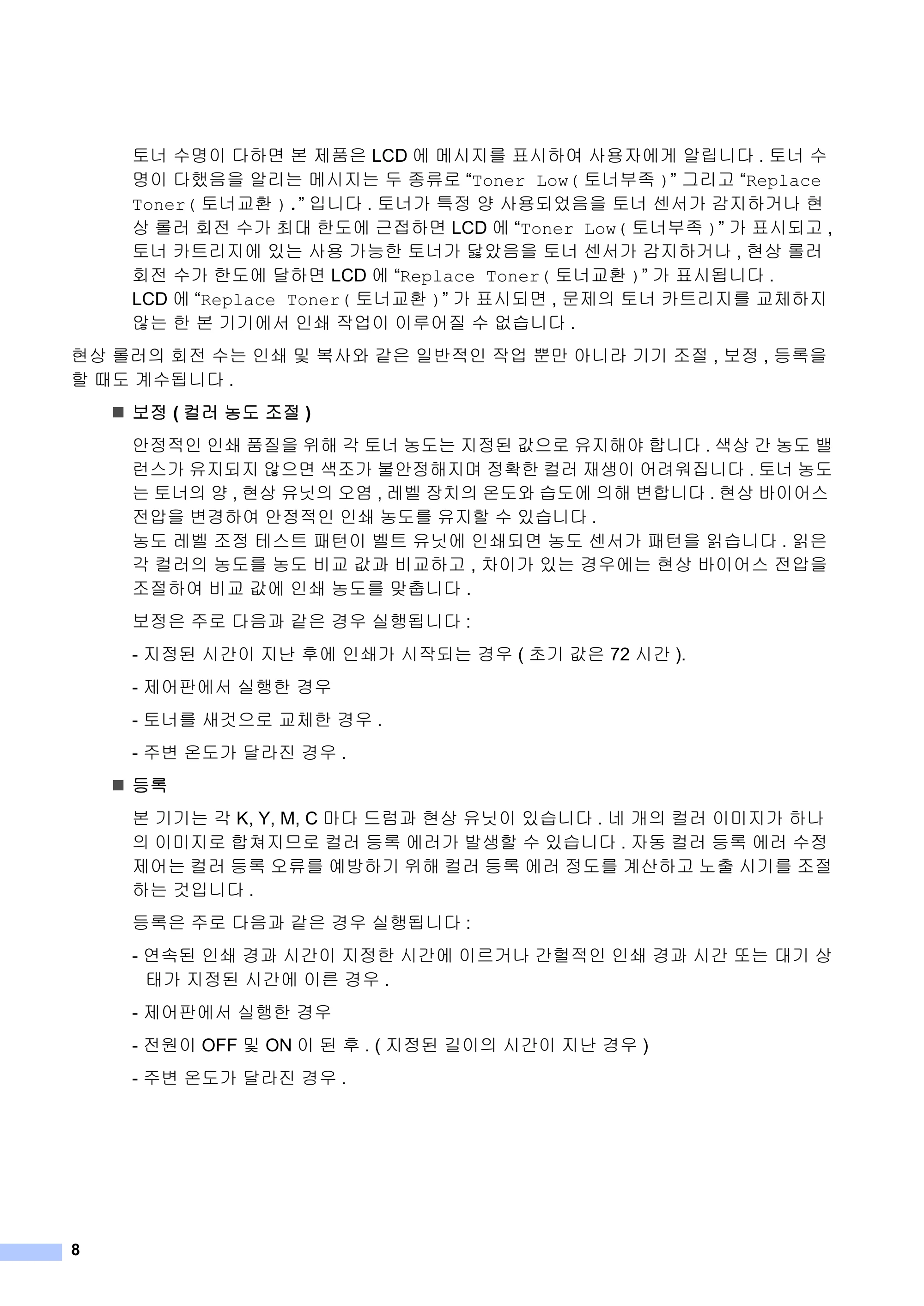
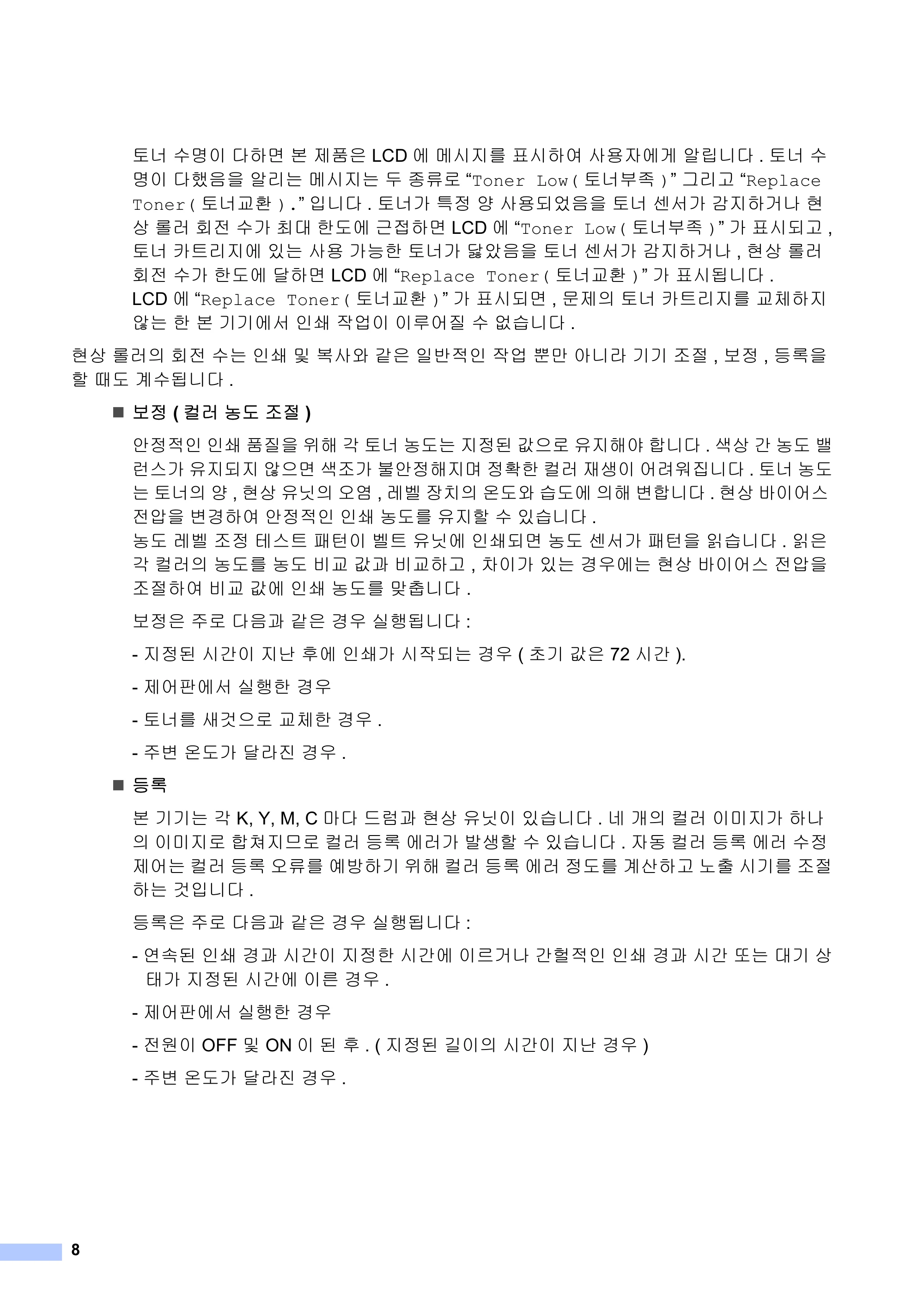
䋔∼ ㍌⮹㢨 ␘䚌⮨ ⸬ 㥐䖼㡴 LCD 㜄 ⮈㐐㫴⪰ 䖐㐐䚌㜠 ㇠㟝㣄㜄᷀ 㚀⫱⏼␘ . 䋔∼ ㍌
⮹㢨 ␘䚼㢀㡸 㚀⫠⏈ ⮈㐐㫴⏈ ▄ 㦹⪌⦐ “Toner Low( 䋔∼⺴㦥 )” Ἤ⫠Ḕ “Replace
Toner( 䋔∼Ẅ䞌 ).” 㢹⏼␘ . 䋔∼ᴴ 䏭㥉 㛅 ㇠㟝╌㛼㢀㡸 䋔∼ ㉰㉐ᴴ ᵄ㫴䚌ᶤ⇌ 䜸
ㇵ ⦘⤠ 䟀㤸 ㍌ᴴ 㺐 䚐⓸㜄 ἰ㥅䚌⮨ LCD 㜄 “Toner Low( 䋔∼⺴㦥 )” ᴴ 䖐㐐╌Ḕ ,
䋔∼ 㾨䏬⫠㫴㜄 㢼⏈ ㇠㟝 ᴴ⏙䚐 䋔∼ᴴ 㚌㢀㡸 䋔∼ ㉰㉐ᴴ ᵄ㫴䚌ᶤ⇌ , 䜸ㇵ ⦘⤠
䟀㤸 ㍌ᴴ 䚐⓸㜄 ␠䚌⮨ LCD 㜄 “Replace Toner( 䋔∼Ẅ䞌 )” ᴴ 䖐㐐╝⏼␘ .
LCD 㜄 “Replace Toner( 䋔∼Ẅ䞌 )” ᴴ 䖐㐐╌⮨ , ⱬ㥐㢌 䋔∼ 㾨䏬⫠㫴⪰ Ẅ㷨䚌㫴
㙾⏈ 䚐 ⸬ ὤὤ㜄㉐ 㢬㋸ 㣅㛹㢨 㢨⨜㛨㫼 ㍌ 㛺㏩⏼␘ .
䜸ㇵ ⦘⤠㢌 䟀㤸 ㍌⏈ 㢬㋸ ⵃ ⸩㇠㝴 ᵍ㡴 㢰ⵌ㤵㢬 㣅㛹 ⬀ 㙸⏼⢰ ὤὤ 㦤㤼 , ⸨㥉 , ☥⦑㡸
䚔 ⚀⓸᷸ ㍌╝⏼␘ .
⸨㥉 ( 䀠⤠ ⋁⓸ 㦤㤼 )
㙼㥉㤵㢬 㢬㋸ 䖼㫼㡸 㠸䚨 ᴵ 䋔∼ ⋁⓸⏈ 㫴㥉═ ᵆ㡰⦐ 㡔㫴䚨㚰 䚝⏼␘ . ㇽㇵ ᴸ ⋁⓸
⤤㏘ᴴ 㡔㫴╌㫴 㙾㡰⮨ ㇽ㦤ᴴ ⺼㙼㥉䚨㫴⮤ 㥉䞉䚐 䀠⤠ 㣠㈑㢨 㛨⥘㠀㬅⏼␘ . 䋔∼ ⋁⓸
⏈ 䋔∼㢌 㛅 , 䜸ㇵ 㡔␏㢌 㝘㜰 , ⤼ⷜ 㣙㾌㢌 㝜⓸㝴 ㏩⓸㜄 㢌䚨ⷴ 䚝⏼␘ . 䜸ㇵ ⵈ㢨㛨㏘
㤸㚉㡸ⷴᷱ 䚌㜠 㙼㥉㤵㢬 㢬㋸ ⋁⓸⪰ 㡔㫴䚔 ㍌ 㢼㏩⏼␘ .
⋁⓸ ⤼ⷜ 㦤㥉 䊀㏘䏬 䑜䉨㢨 ⷜ䏬 㡔␏㜄 㢬㋸╌⮨ ⋁⓸ ㉰㉐ᴴ 䑜䉨㡸 㢱㏩⏼␘ . 㢱㡴
ᴵ 䀠⤠㢌 ⋁⓸⪰ ⋁⓸ ⽸Ẅ ᵆḰ ⽸Ẅ䚌Ḕ , 㵜㢨ᴴ 㢼⏈ᷱ 㟤㜄⏈ 䜸ㇵ ⵈ㢨㛨㏘ 㤸㚉㡸
㦤㤼䚌㜠 ⽸Ẅ ᵆ㜄 㢬㋸ ⋁⓸⪰ ⬒㻙⏼␘ .
⸨㥉㡴 㨰⦐ ␘㢀Ḱ ᵍ㡴ᷱ 㟤 㐘䚽╝⏼␘ :
- 㫴㥉═ 㐐ᴸ㢨 㫴⇐ 䟸㜄 㢬㋸ᴴ 㐐㣅╌⏈ᷱ 㟤 ( 㸼ὤ ᵆ㡴 72 㐐ᴸ ).
- 㥐㛨䑄㜄㉐ 㐘䚽䚐ᷱ 㟤
- 䋔∼⪰ ㇼᶷ㡰⦐ Ẅ㷨䚐ᷱ 㟤 .
- 㨰ⷴ 㝜⓸ᴴ ␠⢰㫸ᷱ 㟤 .
☥⦑
⸬ ὤὤ⏈ ᴵ K, Y, M, C ⫼␘ ☐⤰Ḱ 䜸ㇵ 㡔␏㢨 㢼㏩⏼␘ . ≘ ᵐ㢌 䀠⤠ 㢨㫴ᴴ 䚌⇌
㢌 㢨㫴⦐ 䚝㸄㫴⦐ 䀠⤠ ☥⦑ 㜄⤠ᴴ ⵐ㈑䚔 ㍌ 㢼㏩⏼␘ . 㣄┍ 䀠⤠ ☥⦑ 㜄⤠ ㍌㥉
㥐㛨⏈ 䀠⤠ ☥⦑ 㝘⪌⪰ 㜼ⵝ䚌ὤ 㠸䚨 䀠⤠ ☥⦑ 㜄⤠ 㥉⓸⪰᷸ 䚌Ḕ ⊬㻐 㐐ὤ⪰ 㦤㤼
䚌⏈ ᶷ㢹⏼␘ .
☥⦑㡴 㨰⦐ ␘㢀Ḱ ᵍ㡴ᷱ 㟤 㐘䚽╝⏼␘ :
- 㜤㋁═ 㢬㋸ᷱ Ḱ 㐐ᴸ㢨 㫴㥉䚐 㐐ᴸ㜄 㢨⪨ᶤ⇌ ᴸ䜄㤵㢬 㢬㋸ᷱ Ḱ 㐐ᴸ ❄⏈ ὤ ㇵ
䈐ᴴ 㫴㥉═ 㐐ᴸ㜄 㢨⪬ᷱ 㟤 .
- 㥐㛨䑄㜄㉐ 㐘䚽䚐ᷱ 㟤
- 㤸㠄㢨 OFF ⵃ ON 㢨 ═ 䟸 . ( 㫴㥉═ Ὤ㢨㢌 㐐ᴸ㢨 㫴⇐ᷱ 㟤 )
- 㨰ⷴ 㝜⓸ᴴ ␠⢰㫸ᷱ 㟤 .
日本語
9
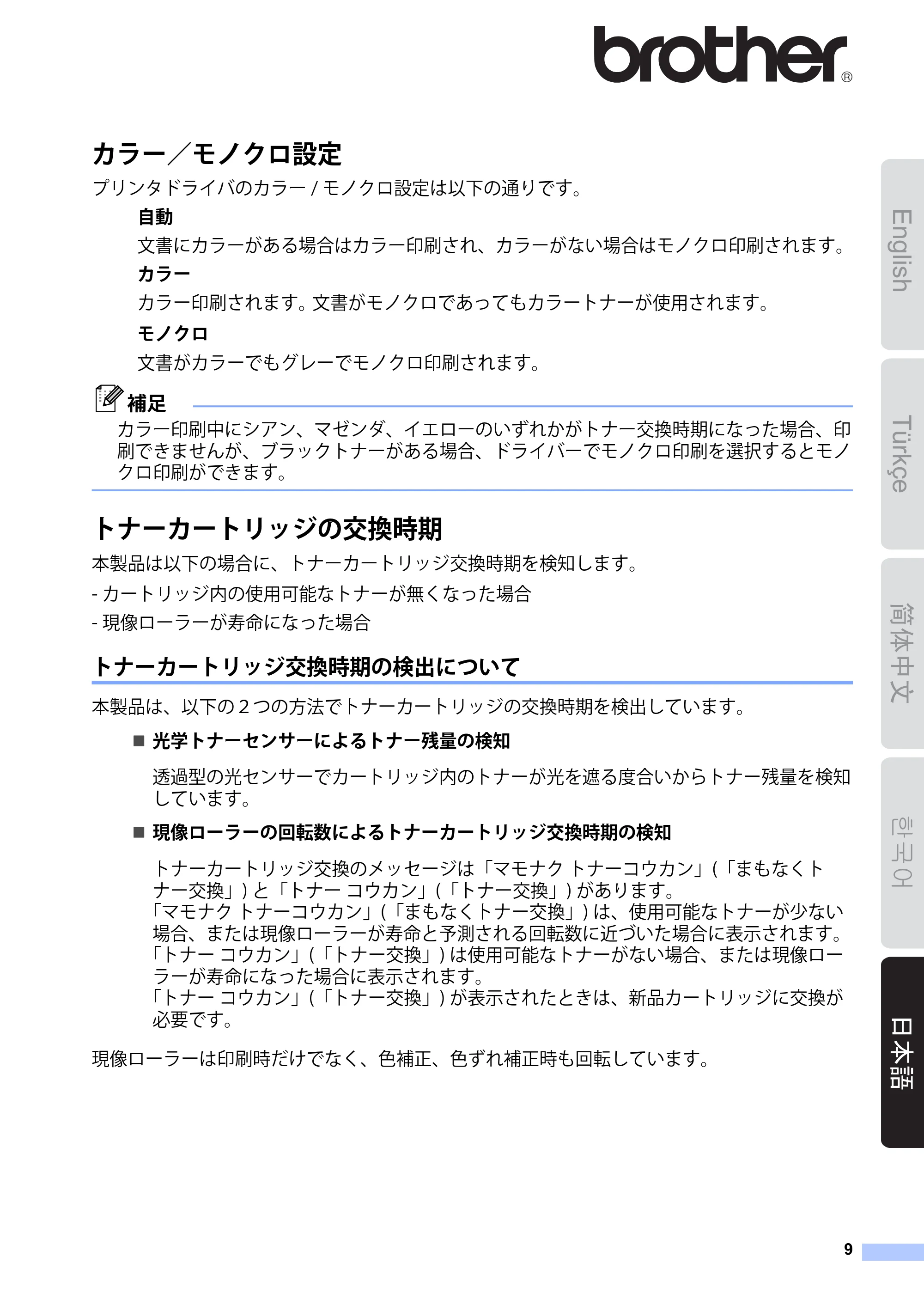
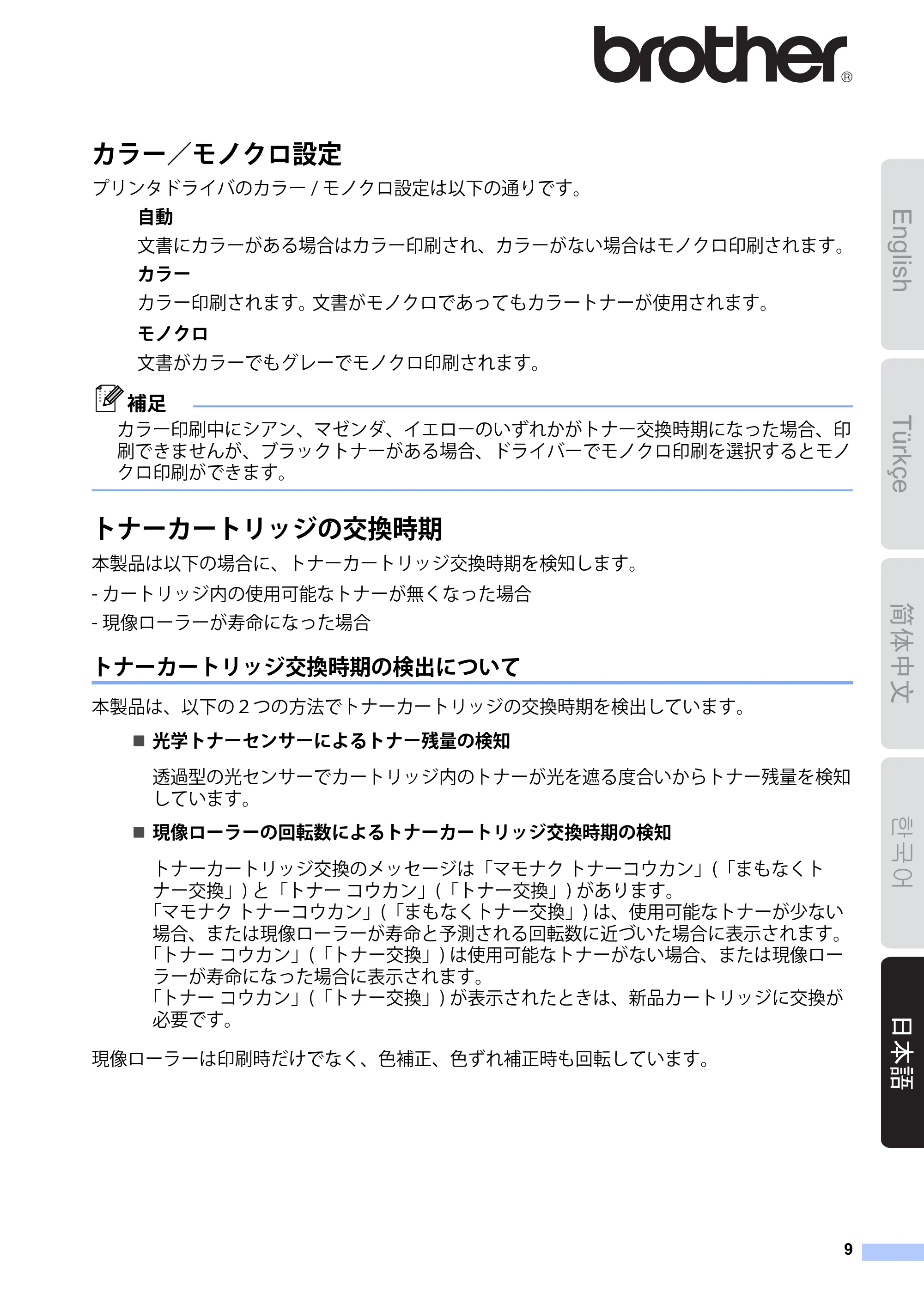
カラー/モノクロ設定 0
プリンタドライバのカラー / モノクロ設定は以下の通りです。
自動
文書にカラーがある場合はカラー印刷され、カラーがない場合はモノクロ印刷されます。
カラー
カラー印刷されます。文書がモノクロであってもカラートナーが使用されます。
モノクロ
文書がカラーでもグレーでモノクロ印刷されます。
補足
カラー印刷中にシアン、マゼンダ、イエローのいずれかがトナー交換時期になった場合、印
刷できませんが、ブラックトナーがある場合、ドライバーでモノクロ印刷を選択するとモノ
クロ印刷ができます。
トナーカートリッジの交換時期 0
本製品は以下の場合に、トナーカートリッジ交換時期を検知します。
- カートリッジ内の使用可能なトナーが無くなった場合
- 現像ローラーが寿命になった場合
トナーカートリッジ交換時期の検出について
本製品は、以下の2つの方法でトナーカートリッジの交換時期を検出しています。
光学トナーセンサーによるトナー残量の検知
透過型の光センサーでカートリッジ内のトナーが光を遮る度合いからトナー残量を検知
しています。
現像ローラーの回転数によるトナーカートリッジ交換時期の検知
トナーカートリッジ交換のメッセージは「マモナク トナーコウカン」(「まもなくト
ナー交換」) と「トナー コウカン」(「トナー交換」) があります。
「マモナク トナーコウカン」(「まもなくトナー交換」) は、使用可能なトナーが少ない
場合、または現像ローラーが寿命と予測される回転数に近づいた場合に表示されます。
「 トナー コウカン」(「トナー交換」) は使用可能なトナーがない場合、または現像ロー
ラーが寿命になった場合に表示されます。
「 トナー コウカン」(「トナー交換」) が表示されたときは、新品カートリッジに交換が
必要です。
現像ローラーは印刷時だけでなく、色補正、色ずれ補正時も回転しています。
English
10ページ
10
色補正
安定した印刷画質を得るために各トナーの濃度を保つように色濃度を補正します。
ベルトユニット上にテストパターンを印刷して濃度を測定し濃度を補正させています。
補正は主に以下のタイミングで行われます。
- 設定した時間経過後に印刷が開始されたとき (通常は 72 時間 )
- 操作パネルから色補正を実行したとき
- 新品トナーカートリッジに交換したとき
- 周囲温度が変化したとき
色ずれ補正
各カラー別に印刷しているため位置ずれが発生する場合があります。
色ずれが起きないように各カラーの印刷位置を補正しています。
補正は主に以下のタイミングで行われます。
- 所定時間以上の印刷および所定の時間経過したとき ※機種・使用環境等により異なり
ます。
- 操作パネルから色補正を実行したとき
- 電源 OFF/ON したとき
- 周囲温度が変化したとき
11ページ